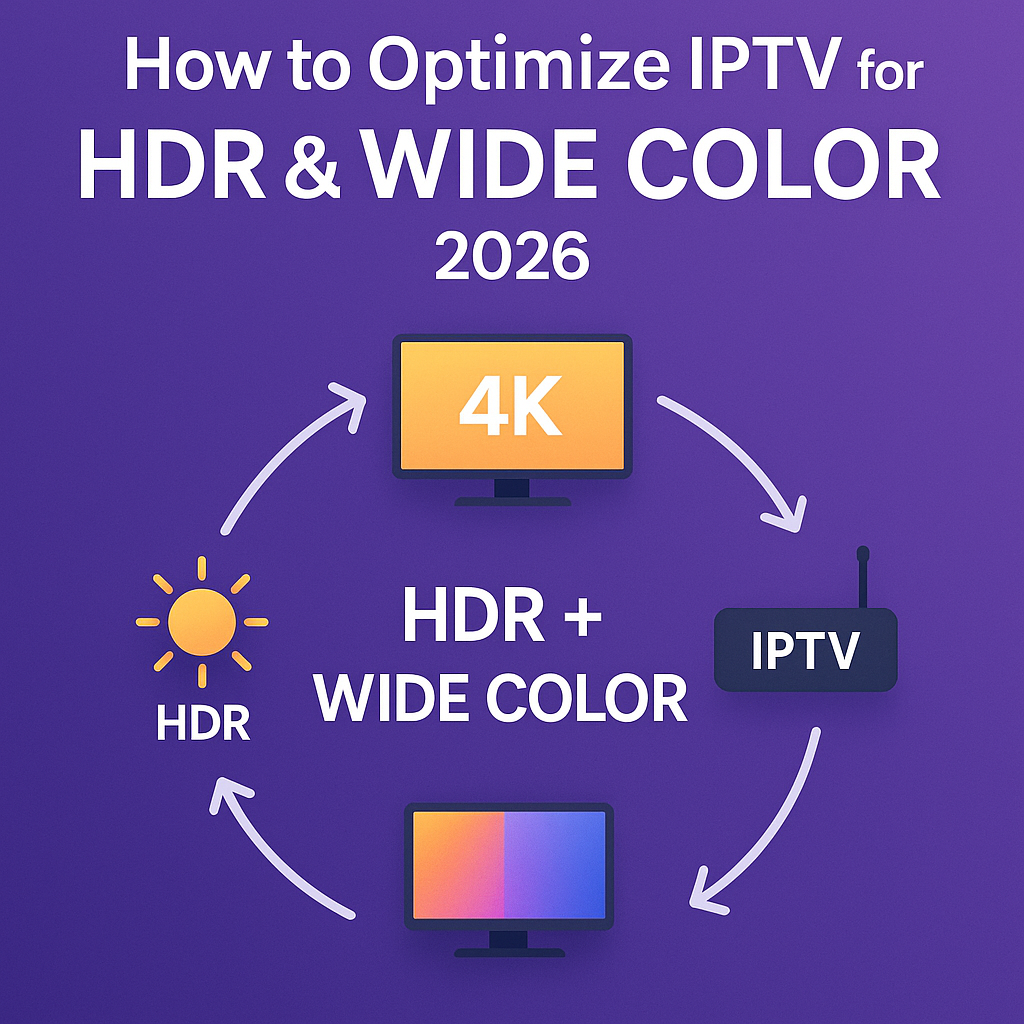
How to Optimize IPTV for HDR & Wide Color 2026
Intro, Backstory & Why This Matters
We all love perfect visuals—the deep blacks, vibrant colors, scenes that pop off the screen. That’s what HDR and wide color bring. In 2026, IPTV isn’t just about delivering content—it’s about delivering stunning visuals. But to unlock that, you need to optimize your setup. That’s what IPTV HDR optimization is all about.
Backstory? I once watched a nature documentary in “standard” IPTV mode—beautiful, but flat. Then I switched to HDR mode with proper settings—and wow. The forest looked alive, the skies had depth, and I felt like I was standing there. That was the moment I realized: visuals matter as much as content.
Why this matters?
- Better experience. HDR makes everyday scenes look cinematic.
- Stand out. Most IPTV streams are SDR—offering HDR gives your setup an edge.
- Future readiness. As content shifts toward HDR and wide gamut, you’ll already be ahead.
Steps, Tools & How to Enable HDR & Wide Color
Time to roll up sleeves. Here’s how you optimize IPTV for HDR & wide color in 2026:
- Step 1: Use HDR-capable hardware. Your TV, display, or device must support HDR10, Dolby Vision, or HDR10+. If it doesn’t, optimization won’t help.
- Step 2: Pick an IPTV provider that offers HDR streams. Not all IPTV content supports HDR. Ensure your subscription includes HDR channels or VOD.
- Step 3: Use a player that supports HDR. Apps like TiviMate, IPTV Smarters, or VLC (latest builds) now support HDR playback.
- Step 4: Enable wide color / 10-bit mode. In your device settings, select “10-bit color,” “Wide Gamut,” or “Deep Color.”
- Step 5: Calibrate display settings. Turn off forced color filters or night mode. Use accurate color profiles and set contrast, gamma correctly.
- Step 6: Stabilize bandwidth. HDR streams are heavier. Use wired Ethernet or high-end Wi-Fi (Wi-Fi 6/6E) to avoid frame drops.
- Step 7: Test HDR vs SDR. Use test clips (available online) to confirm you’re getting real HDR—check highlights, shadows, color gradations.
Pro tip: In mixed scenes (dark + bright), HDR shines. It automatically expands contrast without blowing out the highlights.
Reality Check
Here’s the honest part—optimizing IPTV for HDR & wide color is sensitive. If your display, app, or stream isn’t fully HDR-ready, you may see washed-out images, banding, or incorrect colors. Also, not all content is mastered in HDR—some “HDR” streams are just upscaled SDR.
By 2026, HDR support is better, but you’ll still find gaps—some channels lag behind or skip HDR entirely. The key is matching everything: hardware + app + content + settings.
FAQ
- Q: Will SDR content look bad if HDR mode is on?
A: It depends. Many players convert gracefully, but in some scenes contrast may look off. - Q: Do I need special HDMI cables?
A: Use HDMI 2.0 or higher cables certified for HDR. Older cables may choke on bandwidth. - Q: Does HDR use more data?
A: Slightly more. HDR has higher bit-depths, but the difference isn’t massive compared to 4K over SDR. - Q: Can older TVs display HDR if I force it?
A: Not really. They may distort colors or create artifacts. Real HDR support needs compatible hardware. - Q: How do I test if HDR is working?
A: Use HDR test videos—check for deeper blacks, brighter highlights, smooth gradients without banding.
Final Verdict
Optimizing IPTV for HDR & wide color in 2026 gives you visuals that feel alive. When done well, it’s magical—details pop, colors deepen, and scenes feel real. But it’s not easy: the weakest link breaks the chain.
My verdict? If your hardware and provider support it, go all in. Test often, calibrate carefully, and enjoy IPTV that looks as good as it sounds.
👉 Ready to experience IPTV in HDR? Check here: https://www.cccam3.com/premium-iptv/