How to Stream IPTV on Your Android TV Box 2026
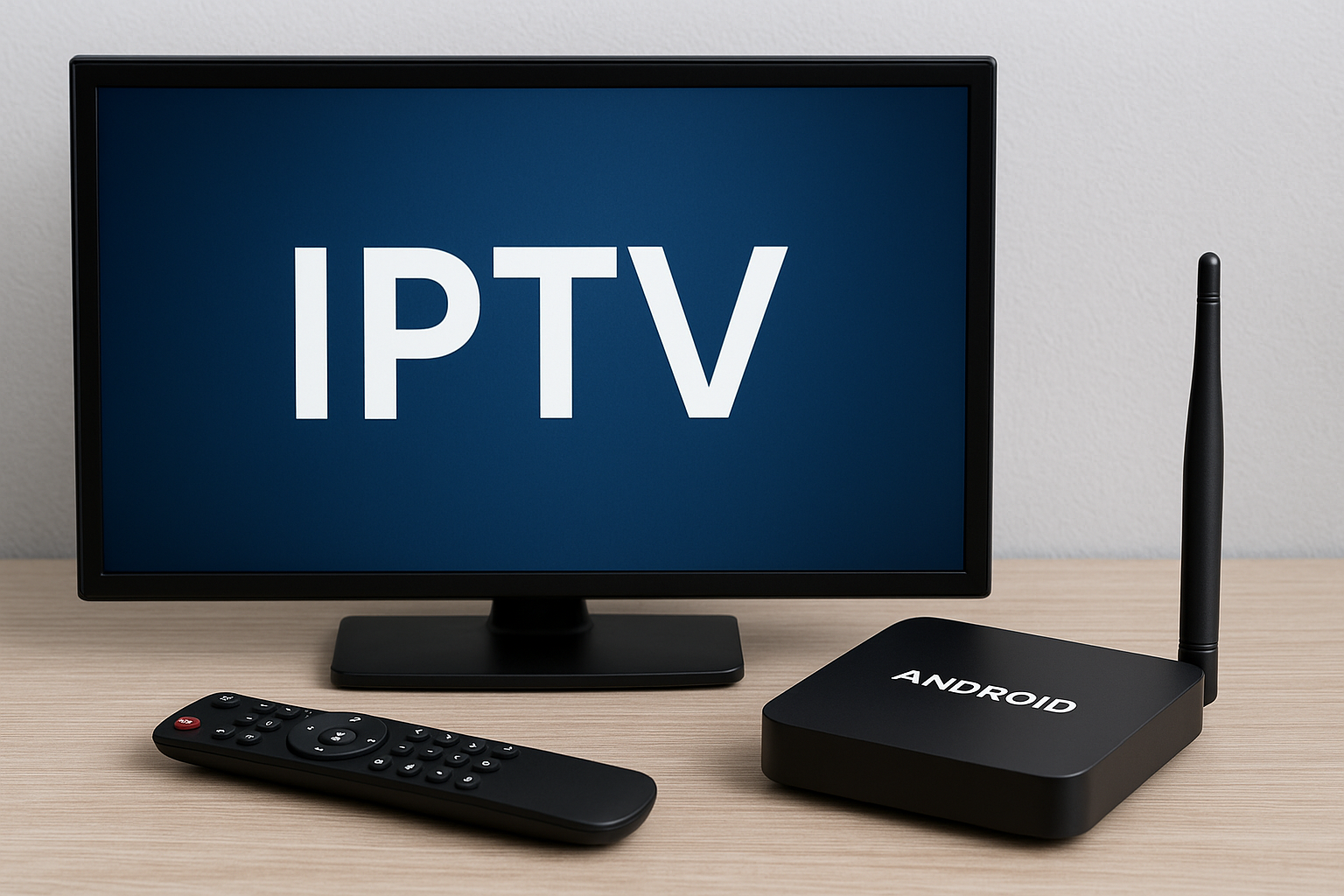
If you have an Android TV box connected to your big screen, you already hold one of the easiest ways to stream IPTV in 2026. With the right apps, a solid internet connection, and a few smart settings, your box can replace cable TV completely and feel faster, cleaner, and more flexible than any traditional subscription.
In this guide, we will walk step by step through how to set up IPTV on your Android TV box, how to choose the right apps, how to get stable 4K streams, and how to avoid the most common mistakes that cause buffering, lag, or poor quality. You do not need to be a tech expert — just follow the process slowly, one section at a time.
Table of Contents
- Why Android TV Boxes Are Perfect for IPTV in 2026
- What You Need Before You Start Streaming
- Installing an IPTV App on Your Android TV Box
- Adding Your IPTV Playlist or Xtream Login
- Optimizing Picture, Sound & Network Quality
- Fixing Common IPTV Problems on Android TV Boxes
- Staying on the Safe & Legal Side in 2026
- How Smart IPTV Bundles Save Americans in 2026
- Reality Check
- Final Verdict
- FAQ
Why Android TV Boxes Are Perfect for IPTV in 2026
Android TV boxes have matured a lot in the last few years. In 2026, even mid-range boxes come with strong processors, modern Android TV interfaces, and full access to the Google Play Store. That means you can install IPTV apps, streaming services, VPNs, and tools just like you would on a regular Android device — but optimized for your TV.
Compared to smart TVs with locked systems, an Android TV box gives you:
- Freedom to install any IPTV app that supports M3U, Xtream API, or Stalker portals.
- More regular updates to apps and the operating system.
- Better remote control support and voice search in many cases.
- 4K, HDR, and sometimes Dolby Vision support on capable devices.
In short, the Android TV box becomes the “brain” of your home entertainment system — and IPTV is one of the best ways to unlock its full potential.
What You Need Before You Start Streaming
Before installing anything, make sure you have the basics ready. This will avoid frustration later.
- A working Android TV box with access to the Google Play Store.
- A reliable IPTV subscription that provides either an M3U URL or Xtream API login.
- Stable internet — ideally 25 Mbps or higher for HD, and 50 Mbps or more for 4K content.
- A remote control or air mouse that makes typing and navigation easier.
- Optional but recommended: an Ethernet cable if your router is close to the box.
If you are still comparing providers or wondering which services are truly legitimate in the United States, it is worth reading a deeper breakdown of what “legal IPTV” actually means. You can explore that topic here:
🔗 Legal IPTV in the USA 2026 – What’s Real, What’s Not
Installing an IPTV App on Your Android TV Box
The core of your setup is the IPTV app you choose. The process is almost identical between different Android TV boxes:
1. Open the Google Play Store
From the home screen of your Android TV box, open the Google Play Store. If you have not signed in with a Google account yet, you will be asked to do so.
2. Search for a Trusted IPTV App
Use the search field or voice search on your remote to find IPTV apps. Popular choices include:
- Tivimate – outstanding for Android TV, excellent EPG and channel organization.
- IPTV Smarters Pro – friendly interface with support for live TV, VOD, and series.
- OTT Navigator – extremely customizable with powerful filters.
3. Install the App
Select your preferred app and click Install. Once installed, open it from your apps list or home screen.
4. Allow Basic Permissions
On first launch, the app may request permissions such as access to storage (if you plan to load local M3U files). Approve what is needed so the app can function correctly.
Adding Your IPTV Playlist or Xtream Login
After installing the app, the next step is to connect it with your IPTV subscription.
Option A: Using an M3U Playlist URL
- Open the IPTV app and go to Add Playlist or Add Source.
- Choose M3U URL as the source type.
- Paste the M3U link provided by your IPTV service.
- Give it a clear name like “Main IPTV” or “Sports & Movies”.
- Save and let the app load your channel list and EPG.
Option B: Using Xtream Codes API (Recommended)
- In the IPTV app, select Xtream Codes, Xtream API, or similar.
- Enter the server URL, username, and password from your provider.
- Save the profile.
- Wait while the app imports live TV, VOD, and series categories.
Xtream login is often more stable than a basic M3U link, especially on Android TV boxes with large channel lists. It also makes it easier to handle categories, EPG, and on-demand libraries.
Optimizing Picture, Sound & Network Quality
Once you can see channels, the real magic starts when you fine-tune your Android TV box and app settings for the best quality.
1. Set the Correct Display Resolution
In the Android TV Display settings, make sure the output resolution matches your TV:
- Use 4K (2160p) at 50/60Hz for 4K TVs.
- Use 1080p if your TV is Full HD only.
A mismatch can cause judder or strange motion artifacts, especially in sports streams.
2. Enable HDR or Dolby Vision (If Available)
If both your TV and box support HDR10 or Dolby Vision, turn these settings on. IPTV channels that support HDR will look more vivid and realistic, especially for movies and premium sports.
3. Use Ethernet Instead of Wi-Fi When Possible
For the most stable IPTV streaming, connect your box via Ethernet cable directly to your router. If that is not possible, use the 5 GHz Wi-Fi band instead of 2.4 GHz whenever you can.
4. Adjust the IPTV App Buffer Settings
Most IPTV apps include buffer or caching options. Increasing the buffer can reduce stuttering, especially on slower connections. Try small changes first — too much buffer can cause long delays when changing channels.
5. Tweak Audio Output
If you use a soundbar or AV receiver, set the audio output to Pass-Through where supported, so formats like Dolby Digital can be decoded by your external system instead of the box.
Fixing Common IPTV Problems on Android TV Boxes
Even after a perfect setup, you may face a few common issues. Here is how to troubleshoot them quickly.
1. Buffering or Constant Freezing
- Test your internet speed on the box using a speed test app.
- Try a lower quality stream (e.g., 720p instead of 4K) temporarily.
- Switch between Hardware, Hardware+ and Software decoders inside the IPTV app.
- Restart your router and Android TV box.
2. Channels Not Loading or Black Screen
- Check if your subscription is still active with your provider.
- Reload the playlist or Xtream profile.
- Make sure the date and time on your Android TV box are correct.
- Test the same playlist on another device to see if the issue is server-side.
3. Audio Out of Sync
- Look for an “Audio Delay” or “Sync” option in your IPTV app.
- Try a different decoder mode.
- Ensure your TV and soundbar are using the same audio mode (e.g., PCM or Bitstream).
4. Remote Control Lag in the IPTV App
- Close other apps running in the background.
- Restart the IPTV app and the box.
- Consider a faster Android TV box if yours is very old or low-spec.
Staying on the Safe & Legal Side in 2026
As IPTV has become more popular, the legal side has also become more complicated. Some services operate with proper rights and agreements, while others clearly do not. From the viewer’s perspective, the safest strategy in 2026 is to:
- Prefer providers that clearly state which content rights they hold.
- Avoid extremely cheap “all channels in the world” offers that look too good to be true.
- Use services that provide proper invoices, terms of service, and customer support.
If you are based in the United States or mainly watch U.S. content, it is especially important to understand which IPTV offers are marketed as “legal” and what that really means in practice. For a deeper breakdown, have a look at:
🔗 Legal IPTV in the USA 2026 – What’s Real, What’s Not
How Smart IPTV Bundles Save Americans in 2026
One of the biggest trends in 2026 is the move away from random, single IPTV subscriptions and toward smarter bundles that combine IPTV with streaming apps, VPN services, and even cloud DVR features. When these bundles are designed well, they can dramatically reduce monthly costs while keeping the viewing experience simple.
Instead of juggling five or six separate services, many viewers now choose one carefully built package that offers:
- A main IPTV subscription for live TV and sports.
- Access to a few key streaming apps for originals and movies.
- A VPN profile pre-configured on their Android TV box.
- Basic support and guidance on how to set everything up.
If you want to explore how these smart bundles actually work in real life — and how they can save American households serious money compared to traditional cable — you can read more here:
🔗 How Smart IPTV Bundles Save Americans in 2026
Reality Check
Even with the best Android TV box, perfect app choice, and fine-tuned settings, your IPTV experience will never be stronger than the server behind it. Oversold servers, poor peering, or lack of capacity during big events can ruin streams no matter how powerful your device is.
That is why it is critical to test providers during peak hours, keep a backup option if TV is important to your household, and avoid building your entire home entertainment system around a single vulnerable IPTV source.
Final Verdict
Streaming IPTV on your Android TV box in 2026 can genuinely replace cable — and in many cases, deliver a smoother, more flexible, and more personalized experience. With the right app, a stable subscription, and a few network and display tweaks, your living room can feel like a modern control center for all your favorite channels and on-demand content.
Focus on quality rather than chasing the cheapest possible offer, learn the basic settings of your IPTV app, and treat your Android TV box as a long-term investment. Once everything is tuned correctly, you may wonder why you waited so long to switch.
FAQ
1. Can any Android TV box run IPTV apps?
Most modern Android TV boxes can run IPTV apps without issues, but very old or extremely low-end devices may struggle with 4K streams or large playlists. For best results, choose a box with at least 2 GB of RAM and a solid processor.
2. Do I need a VPN to stream IPTV on my Android TV box?
A VPN is not always required, but it can help when your internet provider throttles IPTV traffic or blocks certain servers. If you use a VPN, choose a fast, nearby server and test your speed afterward.
3. Is Wi-Fi enough for 4K IPTV streaming?
Yes, strong 5 GHz Wi-Fi can be enough for 4K IPTV, but Ethernet is still more stable. If your box is far from the router or the signal is weak, you may experience buffering at higher resolutions.
4. Why do some channels work perfectly while others buffer?
This usually means that different channels are hosted on different servers or use different bitrates. It is normal to have a few problematic channels, but if most channels buffer, the issue may be with your provider or connection.
5. Can I use the same IPTV subscription on multiple Android TV boxes?
That depends on your provider’s policy. Some allow multiple connections at once, while others limit your account to a single active stream. Always check the terms of your subscription before adding it to more devices.
If you are exploring coin collecting or trying to understand the history behind rare pieces, feel free to browse more guides on HistoraCoin. Each article uncovers a different story, connecting collectors with the hidden past behind the world’s most fascinating coins.
For the latest updates, visit Premium IPTV.