Sky Go Not Working on Windows 11 Technical Fix Guide
Estimated reading time: 18 minutes.
When Sky Go stops working on Windows 11, most viewers assume the application itself has failed completely. In reality, the problem is often more specific. The app may install correctly but fail during launch. It may open normally but refuse to start playback. In other cases, the stream begins and then freezes, buffers, or shows a black screen. These are not identical faults, and each one points to a different part of the Windows and streaming chain.
This guide explains Sky Go problems on Windows 11 from a technical perspective. Instead of listing random quick fixes, it breaks the issue into launch behavior, account access, graphics decoding, network delivery, and local system conditions. That approach makes troubleshooting more realistic and helps viewers understand why the same app can behave well on one Windows 11 machine and badly on another.
Quick Context
This guide explains why Sky Go may stop working on Windows 11, what each failure pattern usually means, and how to diagnose launch errors, playback problems, buffering, and display related faults in a structured way.
- What not working actually means on Windows 11
- When the app does not launch properly
- Sign in and account related failures
- Black screen and blank playback problems
- Buffering freezing and unstable stream behavior
- Graphics drivers hardware acceleration and rendering faults
- Network path issues that look like app failures
- Windows 11 conditions that break playback stability
- Practical steps to diagnose the real cause
- Typical Sky Go failure scenarios
- Reality Check
- Final Verdict
- Frequently Asked Questions
What not working actually means on Windows 11
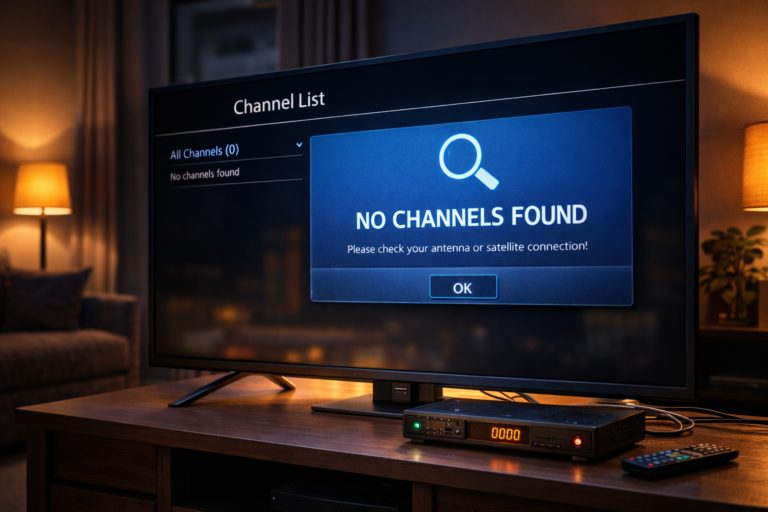
The phrase not working sounds simple, but it covers several different technical situations. On Windows 11, Sky Go can fail before launch, during account sign in, at the moment playback starts, or later during normal viewing. Each stage uses different parts of the system, so the meaning of the fault changes depending on when it appears.
If the app never opens, the issue usually belongs to installation state, permissions, or damaged local files. If the app opens but refuses to load content, the weakness may be linked to account recognition or session handling. If video starts and then fails, the root cause is often decoding, rendering, or network consistency rather than the application package itself.
This matters because many viewers try the same fix for every problem. They reinstall repeatedly even when the app is already installed correctly. A better method is to identify where the failure begins. That instantly reduces guesswork and points attention toward the correct layer of the system.
So the first fix is not a tool. It is a diagnosis mindset. Understand the stage first, then choose the action.
When the app does not launch properly
A launch failure usually means Windows 11 and the local application environment are not completing the startup chain correctly. The app may show nothing, hang on opening, loop at the logo stage, or close immediately after clicking. In this situation, the issue often appears before streaming even begins.
Common causes include incomplete installation, leftover local files from an older setup, a broken update state, or system permissions that prevent the application from reading or writing what it needs during startup. In simple terms, the app cannot settle into the user profile correctly.
This is why launch failures should be treated differently from playback failures. If the interface never reaches a stable start screen, there is little value in testing network performance or video quality first. The problem is still local and structural.
A clean reinstall can help here, but only when it is done properly. Repeating the same broken installation on top of old remnants often reproduces the same result.
Sign in and account related failures
Sometimes Sky Go appears to work at first because the app opens normally, but it fails at the account stage. The viewer may see repeated sign in prompts, partial loading, missing content areas, or an app that never moves from authentication into actual viewing mode. In this case, Windows 11 compatibility is not necessarily the main issue.
The app must contact remote services, confirm the account state, and recognize the device before content can play. If that exchange fails, the user may describe the app as broken even though the local software installed correctly. That is why sign in failures should be separated from installation failures.
From a troubleshooting perspective, successful interface loading but failed account access often points toward session handling, stored credentials, or a communication issue rather than a damaged graphics path. The fix path is different. Reinstalling may help in some cases, but the more important check is whether the app can actually complete account recognition.
When the app opens but never becomes usable, the question is not only does it run. The better question is where it stops becoming functional.
Black screen and blank playback problems
A black screen is one of the most confusing Sky Go issues on Windows 11 because it suggests the app is alive but the video path is broken. Menus may still appear, audio may behave strangely, or the player area may stay blank with no visible motion. This usually points to a rendering or decoding problem rather than a full service outage.
At this stage, the app has often passed installation and sign in successfully. The failure happens later when Windows 11, the graphics driver, and the player engine try to present protected video content on screen. If one part of that chain behaves badly, the result can be a blank image even though the stream request itself has begun.
This is why black screen faults are often linked to graphics handling, display path behavior, or a corrupted local playback state. They are less likely to be solved by random account changes because the app is already beyond the sign in stage.
A useful clue is whether the interface remains responsive while the video area stays blank. If it does, the app is not fully dead. The rendering path is the more likely problem.
Buffering freezing and unstable stream behavior
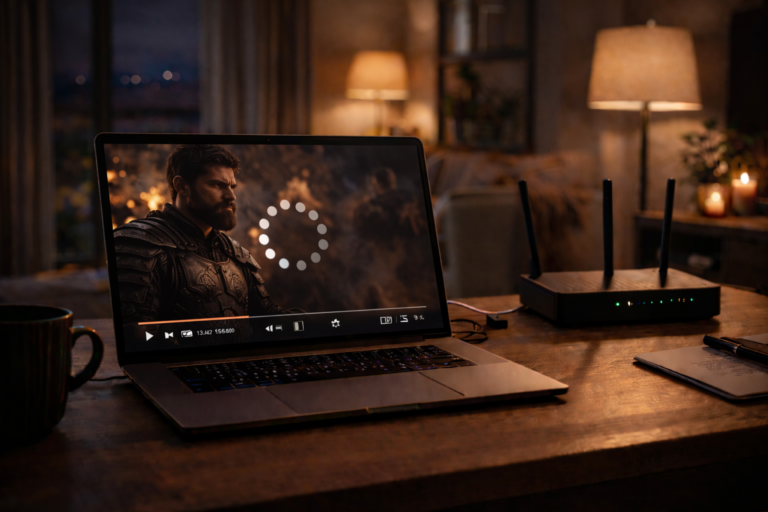
If Sky Go works on Windows 11 but buffers constantly, freezes during live viewing, or pauses after a short period, the problem usually belongs to stream delivery stability or system performance margin. In other words, the app is running, but one part of the playback chain cannot stay ahead of real time viewing.
Streaming works by building a short buffer of video data. If incoming segments arrive steadily, playback remains smooth. If the data flow slows down or the local machine struggles to decode and display the content quickly enough, the buffer shrinks. Once it becomes too small, the viewer sees pauses, reduced quality, or repeated interruptions.
This is different from launch failure and different from a black screen. The app is functioning, and the stream is present, but stability is weak. That usually means the best fixes are not dramatic. They involve removing background load, improving connection consistency, or reducing local decoding pressure.
Repeated buffering is often blamed on the service itself, but local conditions explain many of these cases more convincingly.
Graphics drivers hardware acceleration and rendering faults
On Windows 11, graphics behavior plays a major role in whether Sky Go feels reliable. Modern streaming apps rely on the graphics subsystem to assist with video decoding and rendering. When that path works well, playback stays smooth and CPU pressure remains controlled. When it behaves poorly, video may stutter, appear blank, or become unstable during full screen transitions.
Hardware acceleration is especially important here. If the graphics processor handles part of the video workload, the rest of the system has more breathing room. If the driver is outdated or unstable, Windows may handle the same task less efficiently. That can create choppy playback, frame drops, or a video window that fails to present correctly.
Viewers often overlook this because the desktop itself still looks normal. But normal desktop use is not the same as sustained protected video playback. A driver that feels fine for web browsing can still behave badly when a streaming app asks it to decode and render video continuously.
That is why graphics checks belong near the top of any technical fix plan for Sky Go on Windows 11.
Network path issues that look like app failures
Many Sky Go problems are not really app problems. They are delivery problems that look like app problems. A Windows 11 laptop may have perfect local software health, but if the network path between the device and the stream server is unstable, the user still sees freezing, buffering, delayed loading, or lower picture quality.
This is common on busy home Wi Fi networks where other devices are streaming, downloading, backing up files, or updating in the background. The connection may look fine during a quick speed test, yet still behave unevenly enough to disrupt real time video delivery.
The key detail is consistency. Streaming is less interested in short bursts of high speed than in steady continuous delivery. If the connection keeps dipping, the playback buffer loses its margin and the viewer experiences interruptions.
This explains why some users reinstall the app many times without improvement. The app was never the weak point. The network path was.
Windows 11 conditions that break playback stability
Not every problem comes from Sky Go itself. Sometimes Windows 11 is simply under pressure. Too many background apps, low available memory, heavy storage activity, pending updates, or aggressive security scans can all reduce the margin needed for stable playback.
In those situations, the app may work well for a few minutes and then begin to struggle. The viewer experiences gradual instability rather than an immediate hard failure. This pattern is especially common on laptops with limited cooling, modest integrated graphics, or crowded startup environments.
Display scaling and multi monitor behavior can also affect the way the video window behaves. A stream may technically load, but the viewer sees awkward full screen transitions, poor response, or a video window that behaves differently across screens. These symptoms often feel mysterious because they are not clear network faults and not clear installation faults either.
The reality is simple. Windows 11 compatibility is strongest when the whole local environment is calm, updated, and not overloaded.
Practical steps to diagnose the real cause
The most useful troubleshooting method is to identify the stage where Sky Go stops behaving normally. First ask whether the app installs and launches. If it does not, focus on installation state and local files. Second ask whether sign in completes. If it does not, the issue may be account or session related. Third ask whether playback begins. If it begins but fails later, focus on graphics and network conditions.
After that, observe whether the failure is immediate or gradual. Immediate black screen behavior often points toward rendering or decoding issues. Gradual freezing after a few minutes is more consistent with network fluctuation, thermal pressure, or heavy background load. This simple timing difference is extremely useful during diagnosis.
Then review the Windows 11 condition itself. A system restart, reduced background activity, updated graphics drivers, and a calmer network environment often reveal whether the issue is structural or situational. If the problem disappears under cleaner conditions, the original cause was probably local performance pressure rather than a permanent incompatibility.
Good troubleshooting is not about trying every fix. It is about reading the behavior pattern correctly.
Typical Sky Go failure scenarios
| Scenario | Possible cause | Recommended check |
|---|---|---|
| App does not open at all | Broken install state or damaged local app files | Restart Windows and repeat a clean installation |
| App opens but sign in never completes | Account session or communication issue | Check whether the app reaches a stable authenticated state |
| Menus load but video area stays black | Graphics rendering or decoding fault | Review graphics driver health and local display behavior |
| Playback starts but freezes later | Network instability or rising system load | Monitor connection consistency and background resource usage |
Reality Check
Most Sky Go problems on Windows 11 are not caused by one single universal fault. The real cause is usually local and specific. Launch failures, black screens, buffering, and sign in issues each belong to different parts of the streaming chain, and they should not all be treated the same way.
Final Verdict
Final Verdict
If Sky Go is not working on Windows 11, the best fix is a structured diagnosis rather than a random list of repairs. Determine whether the problem starts at launch, sign in, playback start, or during longer viewing sessions. That tells you whether to focus on installation cleanup, account handling, graphics behavior, network stability, or overall Windows load. Once the failure stage is identified correctly, most Sky Go issues become much easier to understand and fix.
Frequently Asked Questions
| Question | Answer |
|---|---|
| Why is Sky Go not opening on Windows 11 | That usually points to installation problems, damaged local files, or a startup conflict inside the Windows environment. |
| Why do I get a black screen but the app still opens | A black screen often suggests the app passed launch and sign in but the graphics rendering or video decoding path is failing. |
| Is buffering always caused by the app itself | No. Buffering is often linked to unstable network delivery, Wi Fi congestion, or local performance pressure on the computer. |
| Should I reinstall Sky Go every time it stops working | Not always. Reinstalling helps mainly when the problem belongs to launch or damaged local setup. Playback and network issues usually need a different type of check. |